
How to Setup Desk Ergonomically Correct for Better Posture and Productivity
Modern work culture has quietly created one of the most widespread health problems of the digital age: poor desk posture. Hours spent hunched over laptops, forward head posture while reading screens, and improperly aligned chairs have led to increasing complaints of neck strain, lower back pain, wrist fatigue, and chronic discomfort among remote workers and office employees alike.
The good news is that learning how to setup desk ergonomically correct does not require expensive transformations. With a few structured adjustments—chair positioning, monitor alignment, keyboard placement, and movement habits—you can dramatically reduce physical strain while improving focus, energy, and productivity throughout your workday.
This guide provides a complete, step-by-step ergonomic workstation blueprint designed for beginners, remote workers, and home office setups. You will learn how to build a comfortable, efficient workspace that supports your body instead of working against it.
What Is an Ergonomic Workstation and Why Does It Matter?

An ergonomic workstation is a workspace designed to match the natural posture and movement of the human body. Instead of forcing your body to adapt to your desk, an ergonomic setup adjusts the desk environment to support neutral alignment, reduce strain, and improve comfort during long work sessions.
The Connection Between Posture, Comfort, and Productivity
Posture directly influences how efficiently your body uses energy throughout the day. When your spine is aligned, muscles are relaxed, and joints are positioned neutrally, your body expends less energy maintaining balance. This results in reduced fatigue and improved mental focus.
On the other hand, poor posture—such as slouching or leaning forward—creates constant micro-strain on the neck, shoulders, and lower back. Over time, this leads to discomfort, reduced concentration, and decreased productivity. A well-designed ergonomic workstation eliminates unnecessary strain so you can work longer with less effort.
Most Common Symptoms of a Poor Desk Setup
Many people do not realize their workstation is the root cause of daily discomfort. Common symptoms include:
- Neck stiffness or forward head posture
- Shoulder tension and tightness
- Lower back pain after long sitting sessions
- Wrist or forearm fatigue from typing or mouse use
- Frequent headaches caused by screen strain
- Leg stiffness and reduced circulation
These issues often develop gradually, making them easy to ignore until they become persistent. Improving your desk setup can significantly reduce or eliminate these symptoms.
Core Principles of Ergonomic Desk Design
Every ergonomic workstation is built on a few essential principles:
- Neutral spine alignment to reduce pressure on the back
- Eye-level monitor positioning to prevent neck strain
- Relaxed shoulder posture with elbows close to the body
- Neutral wrist positioning while typing and using a mouse
- Regular movement breaks to improve circulation
These principles form the foundation of every effective ergonomic setup, regardless of workspace size or budget.
How to Setup Desk Ergonomically Correct at Home
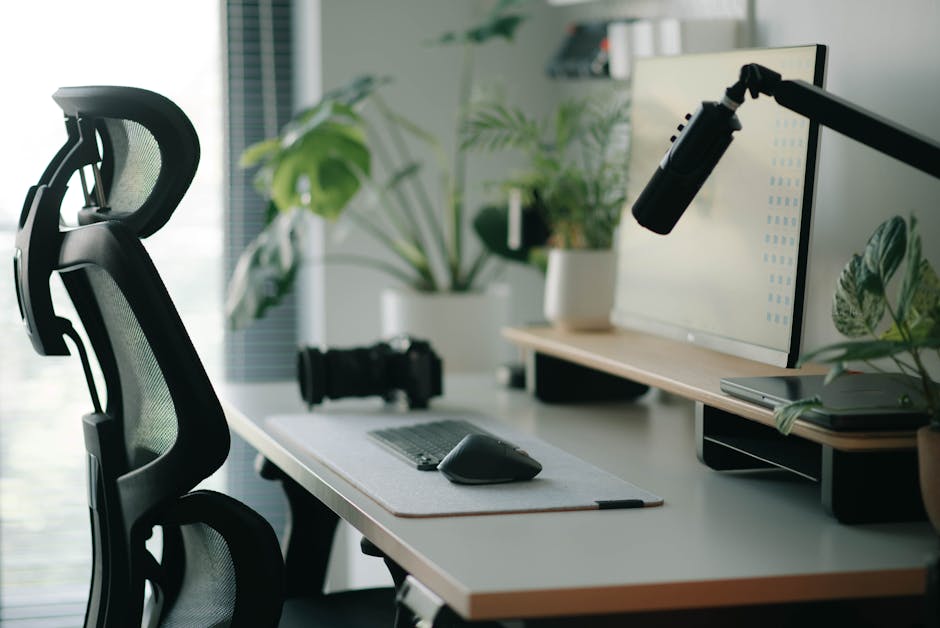
Creating a healthy workstation begins with structured adjustments to your chair, desk, and screen positioning. Below is a practical step-by-step process you can follow immediately.
Step 1: Adjust Your Chair Height Correctly
Your chair is the foundation of your ergonomic setup. When seated properly, your feet should rest flat on the ground with knees bent at approximately 90 degrees. Your hips should be slightly higher than or level with your knees to reduce pressure on the lower back.
If your chair is too high, your feet will dangle and increase thigh pressure. If it is too low, your hips will tilt backward, causing slouching. A properly adjusted chair supports natural spinal alignment and reduces fatigue during long work sessions.
Step 2: Position Your Monitor at Eye Level
Your monitor should be positioned so that the top of the screen is at or slightly below eye level. This ensures your neck remains neutral instead of tilting forward or upward.
Maintain a viewing distance of approximately an arm’s length (50–70 cm). This helps reduce eye strain and prevents you from leaning forward unconsciously throughout the day.
Step 3: Align Your Keyboard and Mouse for Neutral Wrist Posture
Your keyboard and mouse should be placed close enough so your elbows remain at a relaxed 90-degree angle. Wrists should stay straight, not bent upward or downward.
Avoid reaching forward for your mouse, as this creates unnecessary shoulder tension. Keeping input devices within close reach ensures smoother, more comfortable hand movement.
Step 4: Optimize Desk Height and Arm Position
Your desk height should allow your forearms to rest parallel to the ground. If your desk is too high, your shoulders will rise unnaturally, leading to tension. If it is too low, you will slouch forward.
Proper arm support reduces strain on the upper back and allows for longer, more comfortable work periods.
Step 5: Improve Leg Support and Foot Placement
Proper leg positioning supports overall posture stability. Feet should be fully supported on the floor or a footrest to maintain balance and reduce lower back pressure.
When feet are unsupported, circulation decreases, which can lead to stiffness and fatigue. Maintaining stable lower body alignment improves overall comfort during extended sitting.
Ideal Ergonomic Desk Setup Measurements and Positioning Guide

Understanding ergonomic measurements helps you fine-tune your workstation for maximum comfort. Below are widely recommended positioning guidelines used in occupational ergonomics.
| Workstation Element | Recommended Position |
| Chair Height | Knees at 90°, feet flat on ground |
| Monitor Height | Top of screen at eye level |
| Keyboard Position | Elbows at 90°, wrists neutral |
| Screen Distance | 50–70 cm from eyes |
| Back Support | Natural S-curve spine alignment |
Correct Viewing Distance for Screens
Keeping the correct distance from your screen reduces eye fatigue and prevents forward head posture. If your screen is too close, your eyes must constantly refocus. If it is too far, you may lean forward unconsciously.
Best Sitting Angles for Long Work Sessions
The ideal sitting posture involves a 90–100 degree hip angle, relaxed shoulders, and a neutral spine. Slight recline in the chair backrest can help distribute spinal pressure more evenly.
Ergonomic Setup Checklist for Beginners
- Feet flat and supported
- Knees at 90 degrees
- Monitor at eye level
- Wrists straight while typing
- Elbows close to body
- Back supported by chair
- Frequent posture breaks every 30–60 minutes
Best Ergonomic Equipment for a Comfortable Home Office

While posture awareness is the foundation of ergonomics, supportive equipment can significantly enhance comfort and reduce long-term strain. Below are key ergonomic tools that improve workstation performance.
Office Chair Ergonomics: Features That Actually Matter
An ergonomic chair should support the natural curve of your spine. Key features include adjustable lumbar support, seat depth control, and armrests that allow relaxed shoulder positioning. These adjustments help maintain posture consistency throughout the day.
When to Use a Standing Desk or Sit-Stand Desk
Standing desks help reduce prolonged sitting by allowing you to alternate between sitting and standing positions. This variation improves circulation and reduces pressure on the lower back. However, standing should be introduced gradually to avoid fatigue.
Why a Monitor Arm Improves Neck and Shoulder Comfort
A monitor arm allows precise screen positioning, helping maintain eye-level alignment regardless of desk height. This reduces forward head posture and improves neck comfort during long work sessions.
Choosing an Ergonomic Keyboard and Ergonomic Mouse
Ergonomic input devices reduce repetitive strain by encouraging natural wrist positioning. Split keyboards and contoured mice are designed to minimize muscle tension during extended typing and navigation.
Do Adjustable Footrests Help with Lower Back Pain?
Yes, footrests improve lower body alignment when chairs are too high or desks are fixed. They help stabilize posture, reduce pressure on the lower back, and improve circulation during long sitting sessions.
Posture Support and Smart Correction Tools
Posture awareness is often the most difficult part of ergonomic improvement because people naturally revert to slouching over time. Tools that gently remind you to correct your posture can help build long-term habits.
One effective option is KentDO™ Smart Posture Corrector, a wearable device that uses vibration feedback to alert you when you start slouching.

This type of support is especially useful for desk workers who spend long hours seated and want to develop consistent posture awareness throughout the day.
How to Reduce Neck Pain, Back Pain, and Wrist Strain While Working

Even with a good setup, occasional discomfort can occur due to long hours of repetitive work. Understanding the root causes helps you prevent and manage pain effectively.
Neck Pain Troubleshooting Map
Neck pain is often caused by screen positioning issues. If your monitor is too low, you will look downward constantly, leading to forward head posture. Raising the screen and adjusting viewing distance can significantly reduce strain.
Lower Back Pain Causes in Desk Setups
Lower back pain usually results from lack of lumbar support or prolonged slouching. A chair that supports spinal curvature helps maintain healthy posture alignment throughout the day.
Preventing Wrist and Forearm Fatigue
Wrist strain often comes from extended typing or improper mouse positioning. Keeping wrists neutral and reducing pressure on desk edges helps prevent repetitive strain injuries.
Reducing Eye Strain and Blue Light Exposure
Eye strain can be reduced by adjusting screen brightness, using proper lighting, and following the 20-20-20 rule: every 20 minutes, look at something 20 feet away for 20 seconds.
The Best Desk Stretches and Movement Habits for Long Work Hours

Movement is just as important as workstation setup. Even the best ergonomic desk cannot fully prevent discomfort if you remain seated for too long.
5-Minute Desk Stretch Routine for Office Workers
Simple movements such as neck rolls, shoulder shrugs, seated spinal twists, and wrist stretches can help reset posture and reduce stiffness.
Best Stretches for Neck and Shoulders
Gentle lateral neck stretches and shoulder blade squeezes help release built-up tension from prolonged screen use and typing.
Hip and Lower Back Mobility Exercises
Standing hip flexor stretches and seated forward bends help restore flexibility and reduce stiffness caused by prolonged sitting.
How Often Should You Stand Up While Working?
A good guideline is to stand or move every 30–60 minutes. Even brief movement breaks help improve circulation and reduce muscle fatigue.
Ergonomic Desk Setup Ideas for Different Workspaces

Not all workspaces are the same. Your ergonomic setup should adapt to your environment, whether you are working in a small apartment or a dedicated home office.
Small Apartment Ergonomic Desk Setup
Compact spaces benefit from minimal setups using vertical storage, adjustable monitors, and foldable desks. You can explore more organization ideas in our lifestyle collection for space-saving inspiration.
Standing Desk Setup for Remote Workers
Standing desks work best when paired with alternating sitting periods. This reduces fatigue and improves posture flexibility throughout the day.
Budget-Friendly Ergonomic Upgrades for Beginners
Simple upgrades such as lumbar cushions, monitor risers, and footrests can dramatically improve comfort without major investment. Browse ergonomic comfort solutions in our Foot & Body Comfort collection.
Workspace Cable Management and Desk Organization Tips
A clean workspace improves focus and reduces visual stress. Organizing cables and reducing clutter creates a more productive and calming environment.
Common Ergonomic Desk Setup Mistakes to Avoid

Even small mistakes in setup can lead to discomfort over time. Avoiding these habits helps maintain long-term posture health.
- Using a laptop without elevation
- Sitting for hours without movement breaks
- Incorrect chair and desk height alignment
- Ignoring wrist and forearm support
Using a Laptop Without Elevation
Laptops positioned too low force you to look downward, increasing neck strain. Elevating the screen improves alignment and reduces forward head posture.
Sitting Too Long Without Movement
Prolonged sitting reduces circulation and increases stiffness. Regular breaks are essential for maintaining energy and comfort.
Incorrect Chair and Desk Heights
Mismatched desk and chair heights create unnatural posture angles that lead to chronic discomfort. Proper alignment is essential for ergonomic balance.
Ignoring Wrist and Forearm Support
Without proper support, wrists can become strained, leading to repetitive stress injuries over time.
Advanced Comfort and Recovery Tools for Workstations
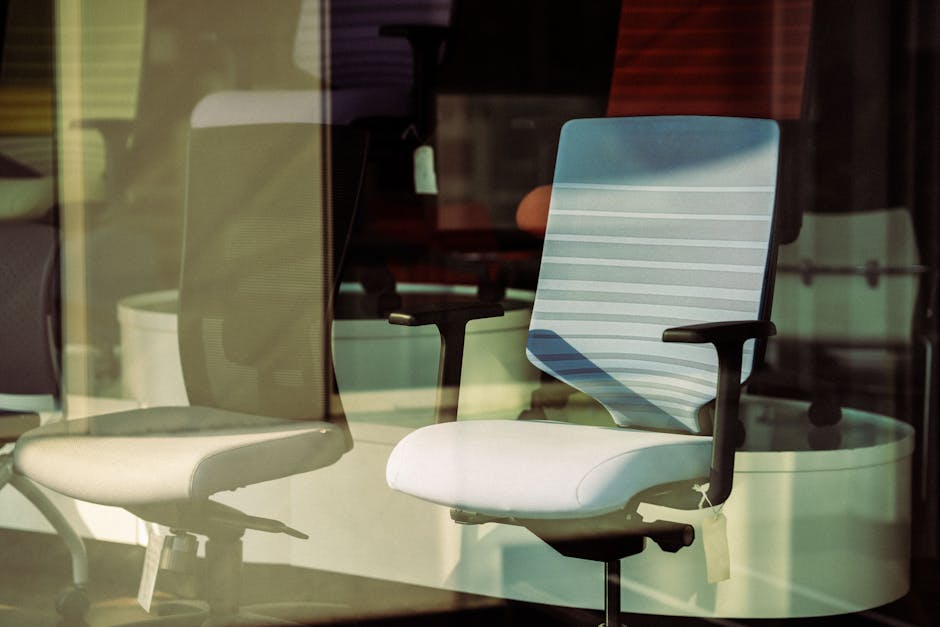
For users experiencing ongoing discomfort from long work hours, additional recovery tools can provide deeper relief and support posture improvement.
Devices like the KentDO™ Lumbar Spine Stretcher help decompress the spine and relieve pressure caused by prolonged sitting.

This type of ergonomic support is especially useful for individuals who experience lower back stiffness or want to enhance spinal flexibility after long working hours.
Expert Insight on Ergonomic Workstation Design
“Ergonomics is not about perfection—it’s about reducing unnecessary strain and allowing the body to work efficiently over long periods.” — Workplace Ergonomics Specialist
This principle highlights that small, consistent adjustments often create more impact than drastic changes.
Frequently Asked Questions
How do you setup desk ergonomically correct at home?
Start by adjusting chair height, aligning your monitor at eye level, keeping wrists neutral, and ensuring feet are fully supported. Small adjustments create significant improvements in comfort.
What is the ideal ergonomic seating position for long work hours?
Feet flat, knees at 90 degrees, back supported, and elbows relaxed at your sides form the ideal seated posture for extended work sessions.
How high should a monitor be for proper posture?
The top of your monitor should be at or slightly below eye level to prevent neck strain and forward head posture.
Do ergonomic footrests help reduce lower back pain while sitting?
Yes, footrests improve alignment and reduce pressure on the lower spine by stabilizing lower body posture.
What are the best desk stretches to relieve stiffness from sitting?
Neck stretches, shoulder rolls, seated twists, and hip flexor stretches help reduce stiffness effectively.
How often should you stand up during computer work?
Ideally every 30–60 minutes to improve circulation and reduce muscle fatigue.
What is the best ergonomic desk setup for small apartments?
Compact desks, vertical storage, monitor risers, and minimal accessories work best in small spaces.
Can a standing desk improve posture and productivity?
Yes, alternating between sitting and standing reduces strain and improves energy levels throughout the day.
What is neutral wrist posture when typing?
Neutral wrist posture means keeping wrists straight and aligned with forearms without bending upward or downward.
How can I reduce neck strain while using dual monitors?
Position monitors at equal height and distance, keeping primary screens directly in front to avoid constant head rotation.
Conclusion
Building an ergonomic workstation is not about expensive equipment—it is about consistent, intentional adjustments that support your body throughout the workday. By improving posture alignment, optimizing desk layout, and incorporating movement habits, you can significantly reduce discomfort while increasing productivity and focus.
Explore more ergonomic comfort solutions in our Wellness & Relaxation collection and Body Care and Health Devices collection to continue improving your workspace comfort over time.
Pillar Article: Best Home Office Setup for Productivity: Ergonomic Guide for Comfort, Focus, and Posture